Linking Content
In Prism Space, you can link Google Docs, Word documents, and more to your Knowledge Base.In order to do this, you must have the following permissions: View Knowledge and Update Knowledge
Go to your Knowledge Base
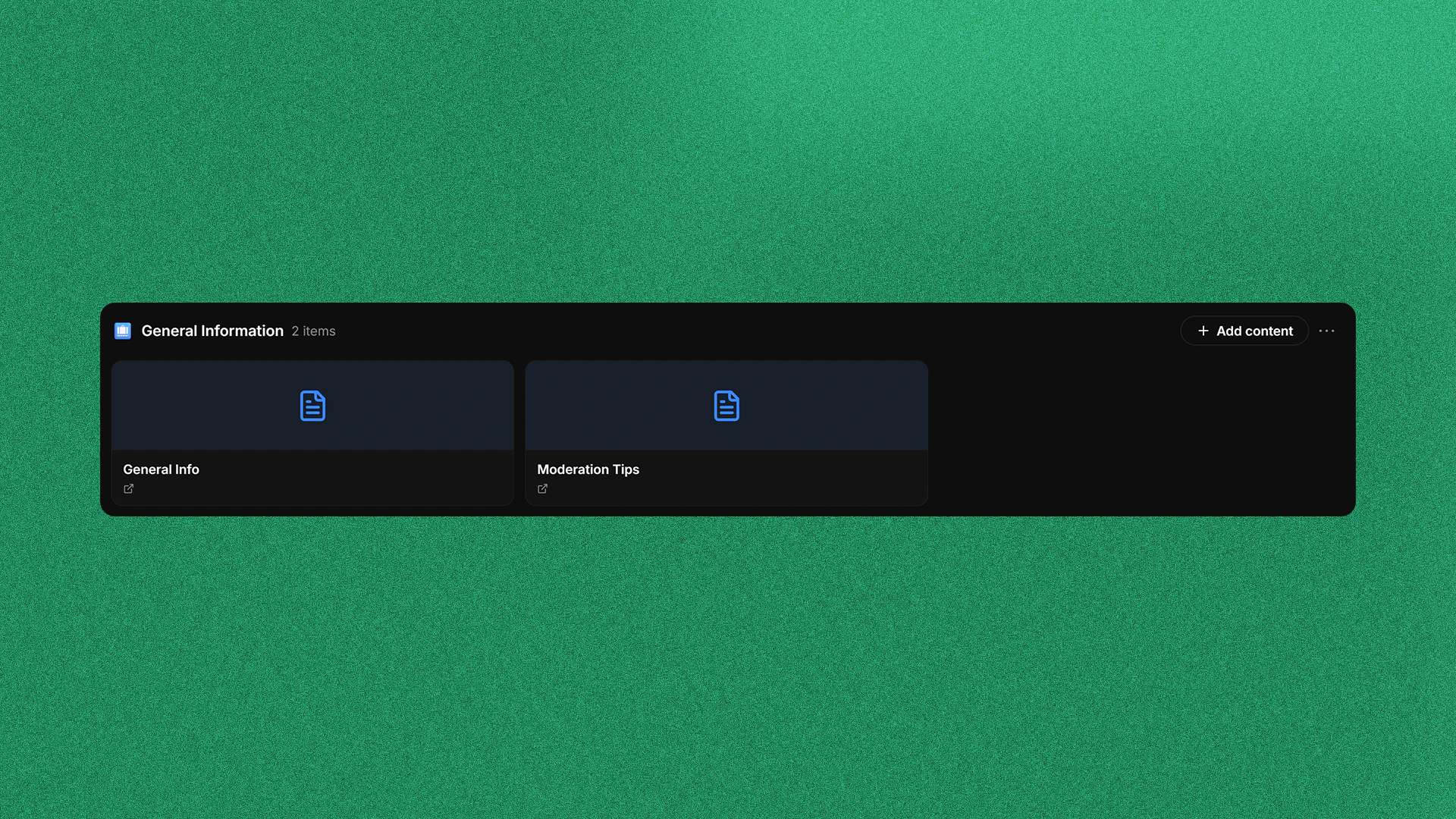
Click Knowledge Base in the sidebar and then click Categories or stay on the homepage if the category you want to add content to is pinned to the homescreen.
Getting to the Add Content Menu
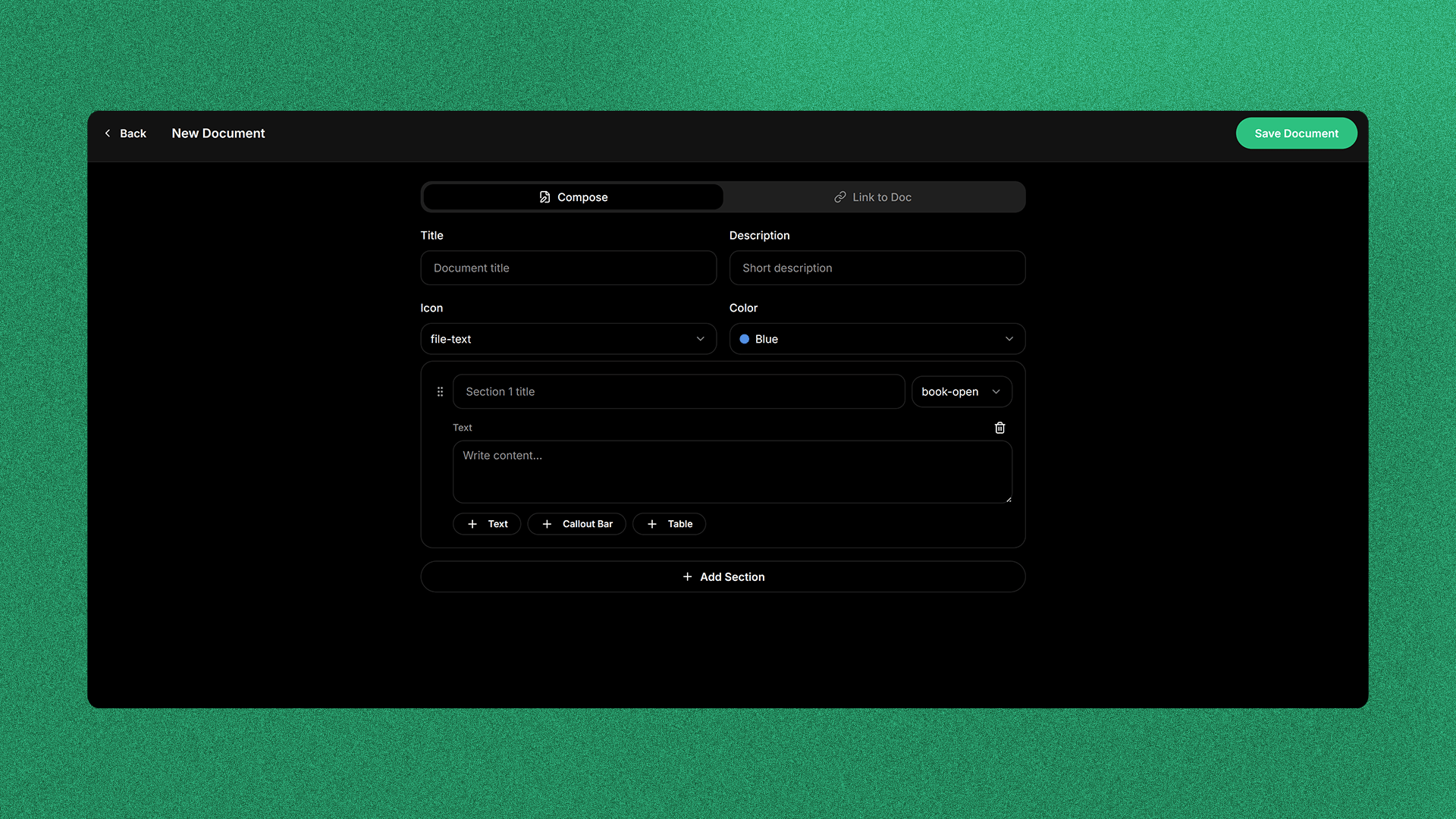
Find the category you want to add your content to and click Add Content. This will bring up a document editor.
Making Content
In Prism Space, there is a richly featured Document Editor to create your team’s one unified Knowledge Base.Go to your Knowledge Base
Click Knowledge Base in the sidebar and then click Categories or stay on the homepage if the category you want to add content to is pinned to the homescreen.
Getting to the Document Editor
Find the category you want to add your content to and click Add Content. This will bring up the Document Editor